





















Gamersland add-on · Link Import
Add a game to your store in two clicks.
Open a game on Kinguin, G2A or any key store, click Send to Gamersland, and the game lands in your store with its name, price, cover and your affiliate link.
-
1
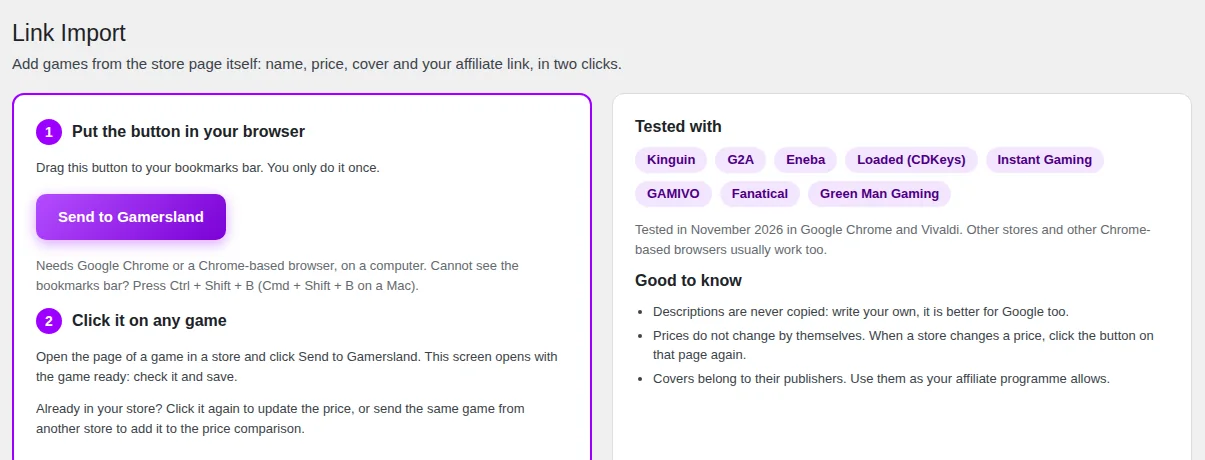
Drag the button once.
Link Import gives you a Send to Gamersland button. Drag it to your browser's bookmarks bar and it stays there.
-
2
Click it on any game.
Open a game on Kinguin, G2A, Eneba or any key store and click the button. Your dashboard opens with the game ready.
-
3
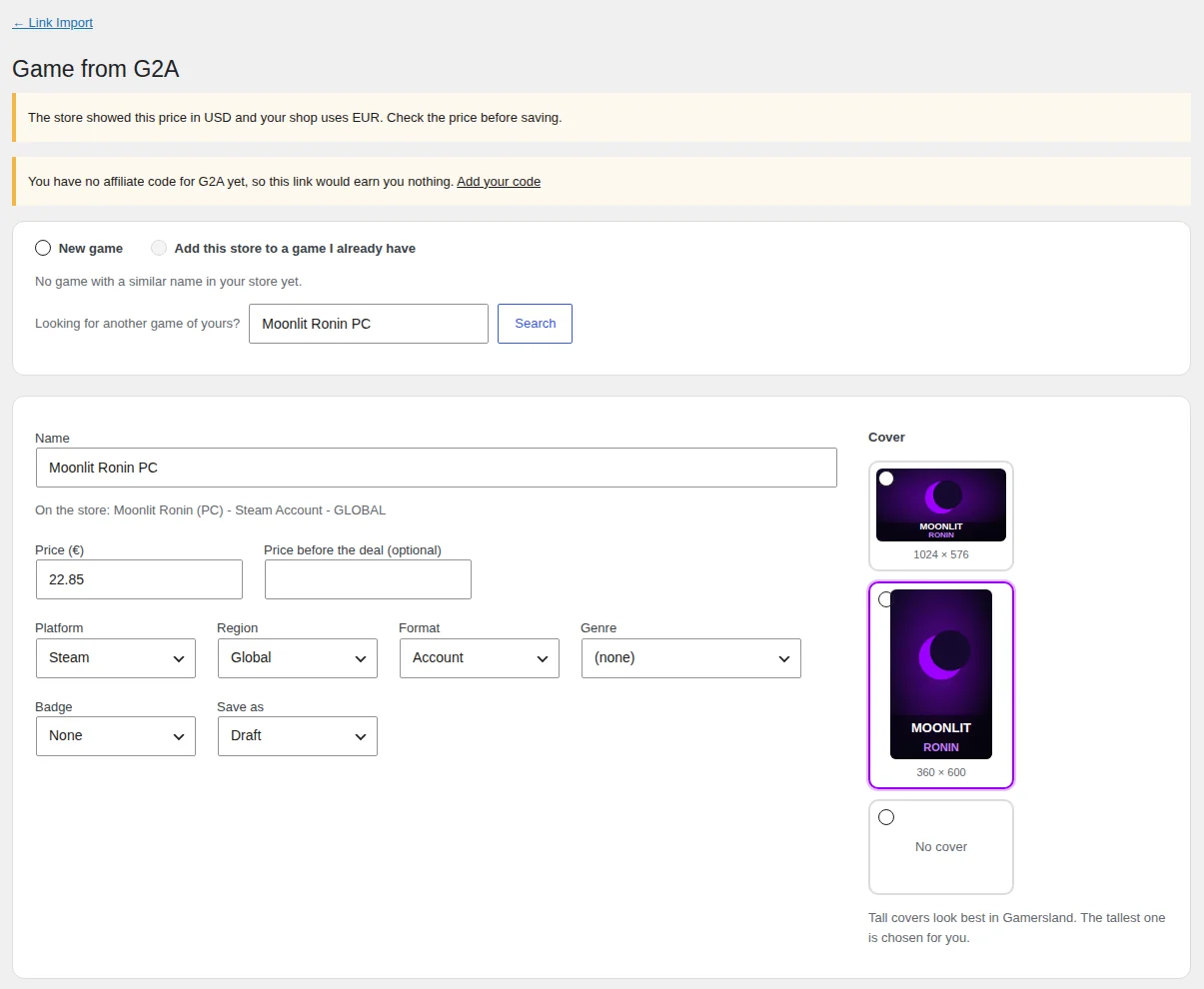
Check and save.
Name, price, cover, platform, region and format are filled in. Your affiliate code is already on the link.
-
Your affiliate code on every link.
Save your code for each store once. Every game you import carries it, and you can update the games you already have in one go.
-
Prices up to date in one click.
When a store changes a price, click the button on that page again and the price in your store changes too.
-
Builds your price comparison.
Send the same game from another store and it joins the comparison on the game page, with its own price and link.
-
Platform, region and format, guessed.
Steam, Xbox, PSN, Global, Europe, DLC or account: read from the store page and chosen for you.
-
The best cover, picked for you.
When the store has more than one image, the tall cover that fits Gamersland is chosen first.
-
Ready in a minute.
Drag one button to your Chrome bookmarks bar and start adding games. Descriptions are never copied, so your store stays your own.
Tested with
- Kinguin
- G2A
- Eneba
- Loaded (CDKeys)
- Instant Gaming
- GAMIVO
- Fanatical
- Green Man Gaming
Tested in Chrome and Vivaldi in November 2026. Other stores usually work too. Store names belong to their owners: Link Import is an independent add-on, not affiliated with or endorsed by any of them.
FAQ
Does it need an API key or an account in the stores?
No. You only need your affiliate code for each store.
Do prices update by themselves?
No. Click the button again on the store page and the price updates in your store.
Which browser do I need?
Google Chrome or a Chrome-based browser, on a computer. Tested in Chrome and Vivaldi. It does not work on phones.
Are descriptions copied?
Never. Store descriptions belong to the stores and Google does not like copied text. Write your own: Link Import leaves the description for you.
What do I need?
Google Chrome or a Chrome-based browser on a computer, the Gamersland theme 1.1.0 or newer, WooCommerce and an affiliate account in at least one store.